RoverPass Channel Manager
Managing inventory across multiple platforms can be challenging, but the RoverPass Channel Manager simplifies the process.
What Is the RoverPass Channel Manager?
- Syncs your inventory across multiple platforms and OTAs (e.g., Airbnb, VRBO).
- Updates rates and availability in one place, saving time.
- Ensures no double bookings by synchronizing calendars.
The channel manager synchronizes inventory and pricing information but does not completely transfer all information (payments, photos, descriptions, etc). This is to make sure that the channel manager is as reliable and fast as possible.
What is the benefit?
- Prevents Double Bookings: Automatically syncs reservations across platforms.
- Saves Time: Updates rates and availability from one dashboard.
- Increases Reservations: Expands your reach to multiple OTAs.
- Improves Customer Experience: Ensures accurate availability for campers.
It is an awesome tool for parks with listings on multiple platforms!
How does it work?
- You will need to set up a listing on any of the supported channels that you want to connect (VRBO, airbnb, booking.com, or Expedia)
- Once you set up the listing, you will get in touch with RoverPass to help you connect your above OTA's to your RoverPass account through the channel manager
- Please note, your OTA listings must be completely set up before connecting to the channel manager to ensure that a complete connection can occur.
- Common confusion: A channel manager does not create your OTA listings for you. It simply syncs inventory and basic rate information once they're fully set up. Details like photos, rules, and descriptions must be updated directly in your OTA accounts.
- Once connected, RoverPass pushes availability and rates to your OTAs, and bookings from OTAs block availability on your RoverPass calendar, preventing double bookings. Syncing takes up to 2 minutes.
- Please note: Existing OTA reservations won’t sync automatically. Make sure to block the corresponding days/sites on your RoverPass calendar for any pre-existing OTA reservations before syncing.
- You’ll see reservations from other OTAs (e.g., booking.com, VRBO) as an Inventory Hold on your RoverPass Calendar (a block with a name), in the Inventory Holds list on your Reservations tab (future only), and in the Inventory Holds Report (both past and future).
- The information will be limited because the job of the channel manager is not to completely recreate the reservation as if it were made on RoverPass. Its main function is to sync your inventory across multiple platforms, prevent double bookings, and eliminate the need for manual updates between your channels.
FAQ:
- How do I sign up for Channel ManageR?
- Getting started is easy! Simply fill out the Channel Manager request form, and a member of our team will review your request and reach out to you with the next steps, including setup and onboarding.
- How much does Channel Manager cost?Channel Manager is $29 per month. This includes access to our Integration Suite, which supports integrations with QuickBooks, Zapier, Xero, and many other platforms.For a full list of available integrations and more details, please check here.
- When I connect to the channel manager, will all of the reservations that I have already taken on my OTAs be automatically synced to RoverPass?
- No, the channel manager updates inventory from the point of connection forward. You'll need to manually add any pre-existing reservations to RoverPass.
- If there are any changes or cancellations to these reservations, you'll need to manually update them in RoverPass, as the channel manager won't recognize them.
- Can I purchase the Channel Manager and use it for channels other than VRBO, airbnb, booking.com, or Expedia?
- No. At this time, only VRBO, airbnb, booking.com, and Expedia are supported. However, exposure through Expedia offers extra exposure to Hotels.com, Travelocity, Orbitz, Wotif, and more within this group!
- I see you also work with Spot2Nite and Hipcamp. Can I purchase the Channel Manager to link with the listings I already have with those OTAs?
- Spot2Nite and Hipcamp are partner OTAs and are already included and managed separately through the marketplace agreement at no extra cost.
- The Channel Manager is only required for non-partner OTAs like Expedia, Airbnb, Booking.com, and VRBO.
- What happens when a guest makes a reservation in an Online Travel Agency?
- You’ll receive a notification from the OTA, and your RoverPass calendar will automatically update with an Inventory Hold for that booking.
- What happens when a guest makes a reservation in RoverPass?
- The channel manager will block availability for those dates/units in your connected OTAs to prevent double bookings
- What should I do if I want to make an entire listing in an OTA unavailable for certain dates?
- You should create a block in the RoverPass calendar for those dates.
- The Channel Manager will block off the corresponding site in your OTAs.
- The same would happen if you mark a site as unavailable altogether. The corresponding site in your OTAs will be made unavailable as well.
- **Please note: We ask that you disable sites connected to the Channel Manager sparingly. If a site will rarely be available, consider asking us to remove it from the Channel Manager entirely.
- I received a booking by phone/email; how do I ensure these dates are not available in the OTA?
- Create the reservation in the RoverPass calendar. This will automatically block the corresponding site/dates in the OTA.
- Can I offer different availability or rates on different OTAs?
- No, the Channel Manager synchronizes availability and base rates across all platforms.
- However, you can use tools outside of base rates to accomplish this. Explore add-ons to see if you can meet your goal:
- If you want to charge more in RoverPass, you might try adding a ""Required add-on"".
- If you want to charge more in your OTAs, you might look at their selections of add-ons and extra fees.
- Why doesn't the reservation from my OTA (booking.com, airbnb, etc) show on my Dashboard or in my Reservations list?:
- An OTA reservation is an inventory hold that prevents double bookings and provides basic guest details. For more information, log in to the source OTA.
- An OTA reservation is an inventory hold that prevents double bookings and provides basic guest details. For more information, log in to the source OTA.
- Do Reservations from One OTA Block Availability on Other Connected OTAs?
- Yes. If all of your booking channels are connected to the RoverPass Channel Manager, a reservation received from one channel will automatically update your availability and block those dates across your other connected channels. This synchronization helps prevent double bookings by keeping your availability consistent across all connected channels. Please note that updates may take a few moments to sync.
- How do I get payment for reservations coming from OTAs?
- Payment is processed through the OTA that sent the reservation. You can receive payment by logging into the source OTA that the reservation was booked on.
- How do I or my guest cancel/refund a reservation that was booked on an OTA (Inventory Holds)?
- Cancellations and refunds must be handled directly through the OTA where the booking was made.
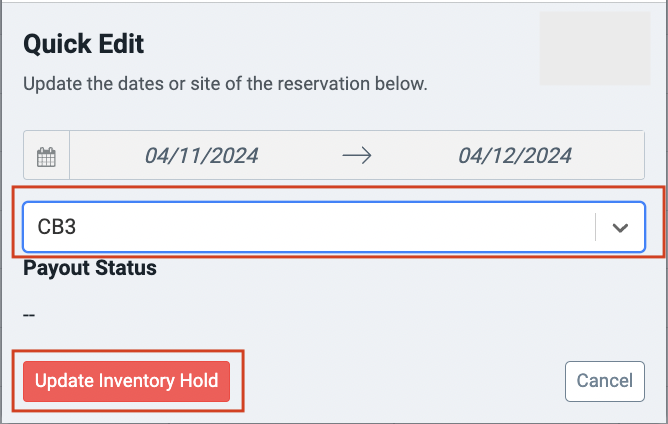
- Can I change the site for the reservation?
- Yes, you certainly can! You can do this from the RoverPass Reservation Calendar.
- It is recommended that you make all changes in the OTA itself, but you can change the site on your calendar if necessary. For all other changes (as mentioned above), refer your guest directly to the source OTA they booked on.
- Can I use the Channel Manager with an OTAs dynamic pricing?
- No. The channel manager maintains base rates evenly across all platforms.
- Can I use RoverPass' dynamic pricing with the Channel Manager?
- No. The channel manager maintains base rates evenly across all platforms.
- The photos / rules / descriptions / questions asked to guests / cancellation policies / payment rules on my OTAs need to be adjusted, how do I do that?
- To adjust this information, you will log into each OTA you have and update it there directly. The channel manager updates only inventory and basic rate information.
- What specifically does the channel manager automatically update from RoverPass to my OTAs (airbnb, booking.com, etc)? (Please note, once hooked to the channel manager, you will need to update these items through RoverPass... you will not have the option to update them in your OTAs)
- Nightly Rate
- Minimum Night Stay
- Availability
- Reservation
- Block
- Disabling a site
- Operation Schedule
- Inventory Holds
- Blackout/Unavailable Dates
- What doesn't the channel manager update/ what do I need to update in my OTAs (airbnb, booking.com, etc)?
- Anything outside of the information listed above. This includes but is not limited to:
- Tax Rate
- Extra People Fees (and count)
- Maximum Night Stay
- Pet Fees (and count)
- Add ons
- Deposits
- Photos
- Description
- Cancellation Policy
- System-wide Reservations on/off
 Feature Update: A site on OTA will show as unavailable if the price is set to $0 for a specific date range on RoverPass.