How to Set Automatic Payments on a Recurring Invoice
The Autopay feature allows campers to set up automatic payments for recurring invoices using a card or ACH. This ensures timely payments without manual intervention, similar to automatic rent payments.
Setting Up Credit Card Autopay
- Login: Access the RoverPass Owner Portal.
- Set Recurring Invoice: Campgrounds create a Flexible Reservation with a Recurring Invoice Schedule.
- Camper/Guest Action: Campers set up a payment method (Card/ACH*) and enable autopay for the card on the due date of each recurring invoice.

*ACH payments are a great option for campers making long-term Flexible Reservations, often for stays of 28 nights or more. Using ACH can help avoid higher processing fees compared to paying with a card, similar to paying rent online through your bank account!
To learn how campers can set up AutoPay, please refer to the How to Set Up Automatic Payments for Reservations Help Article.
Checking Autopay Status
- You will be able to see if Autopay is enabled in the following places:
- Reservation Overview:
- Reservation Overview:
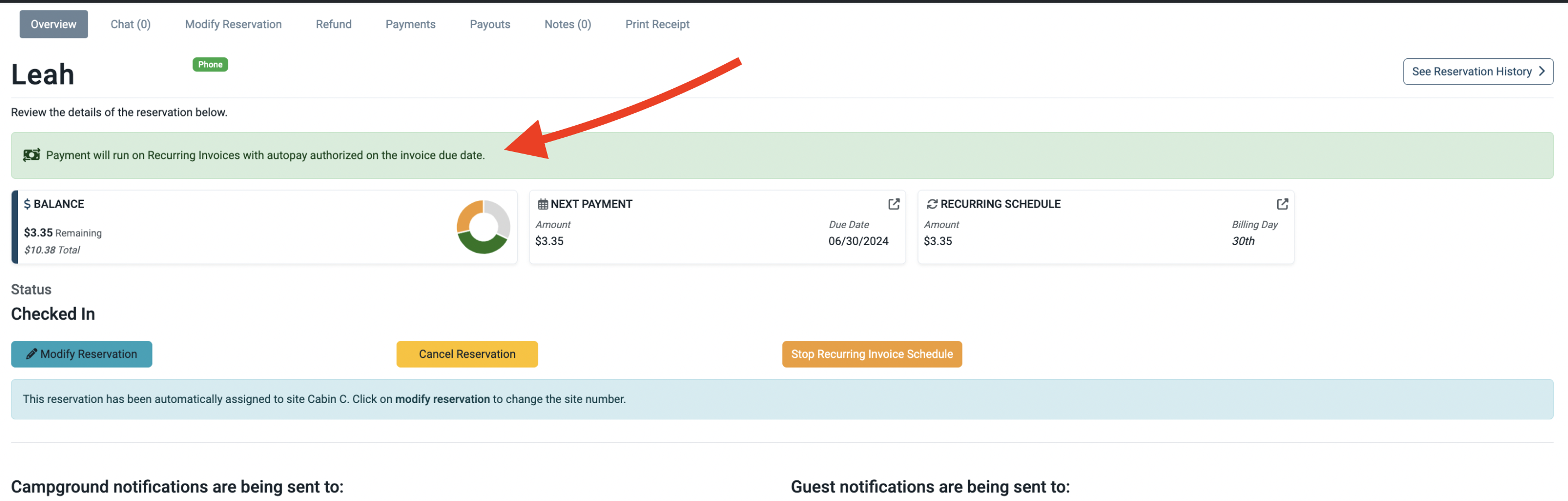
- Invoice Details:
- Invoice Details:
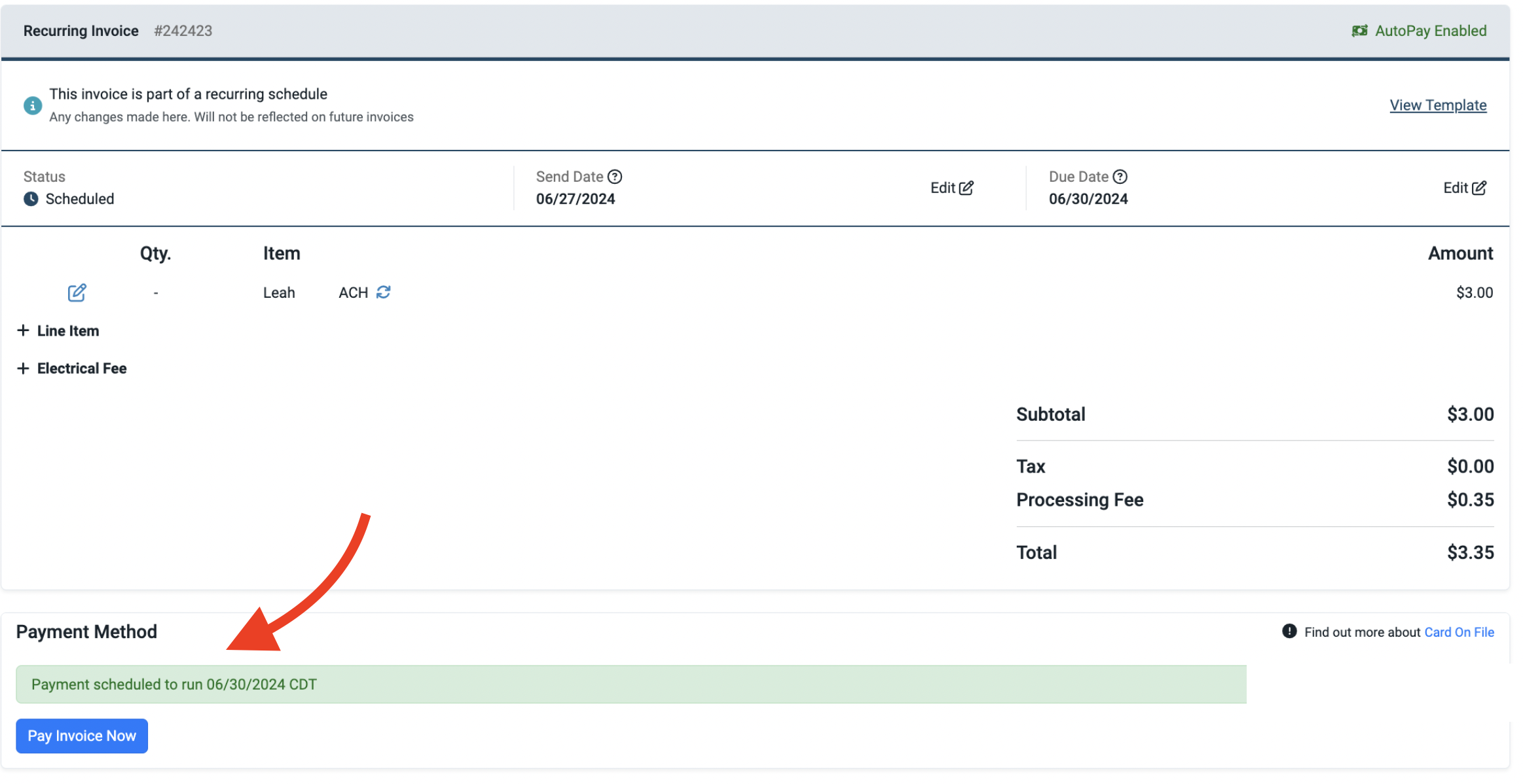
- Reservation Payments Tab:
- Reservation Payments Tab:
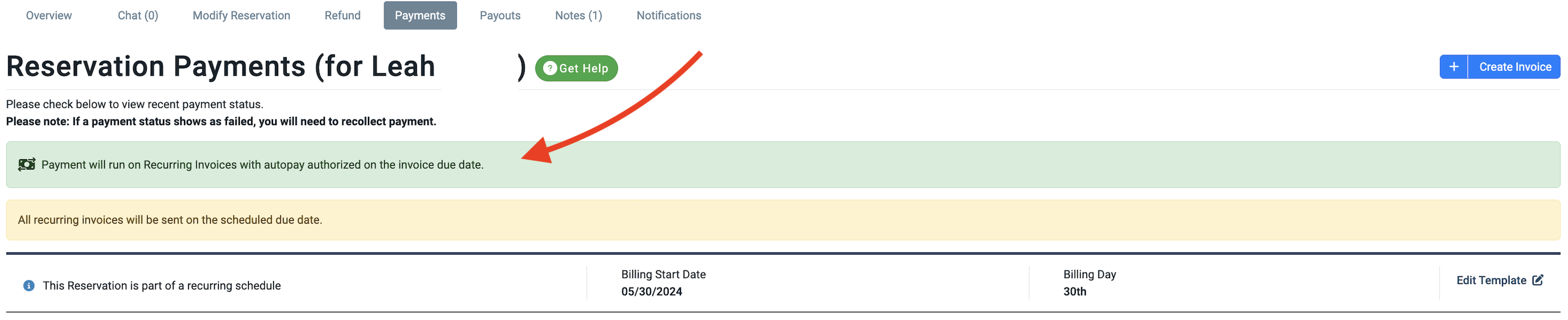
Autopay FAQs
- Can a campground set a camper up on Autopay?
- No, campers must enable autopay themselves through their account portal.
- What’s the difference between autopay and card on file?
- Autopay automatically charges the card on the due date, whereas a card on file is saved for manual payments.
- What are ACH fees?
- ACH payments will be charged at 1%, with a maximum of $5.00 per transaction.
- Are there limitations on using ACH?
- Yes, it depends on the campground! ACH is available if the park allows it, and as long as the campground is in the U.S., uses USD, and your reservation is flexible or for more than 27 nights.
- What happens if I change the billing date?
- Autopay will adjust to the new billing date. However, scheduled invoices will need manual due date adjustments.
- What if I pay an invoice manually?
- If you manually pay an invoice, autopay will skip that month’s payment.
- Where can I see which campers are on autopay?
- The flexible reservations report includes an autopay-enabled column.
Autopay Schedule
- Autopay runs on the due date’s morning, based on the campground's timezone (e.g., CST: 8am-11am).