How to Pay an Invoice Online
If you have an outstanding invoice for a long-term reservation, you can pay it through your RoverPass account using either a credit card or ACH (bank transfer). You also have the option to enable Autopay for future invoices. This feature is available only for long-term reservations of 29 nights or more.
Step 1: Log in to Your RoverPass Account
Go to the RoverPass login page and sign in using the email address and password associated with your reservation.
Don't have your password?
- Click Forgot Password?
- Enter the email address associated with your RoverPass account.
- Check your email for the password reset link.
- Follow the instructions to create a new password.
- Once your password has been reset, log in to your account.
Step 2: Open Your Reservation
After logging in:
- Click Reservations from the menu on the left side of the screen.
- Select the reservation for which you need to pay the invoice.
Step 3: Select Your Invoice
- Click the Payments tab at the top of the reservation page.
- Locate the outstanding invoice.
- Click Pay Now.
Step 4: Choose Your Payment Method
Select your preferred payment method, enter your credit card details or bank account, and click Pay. 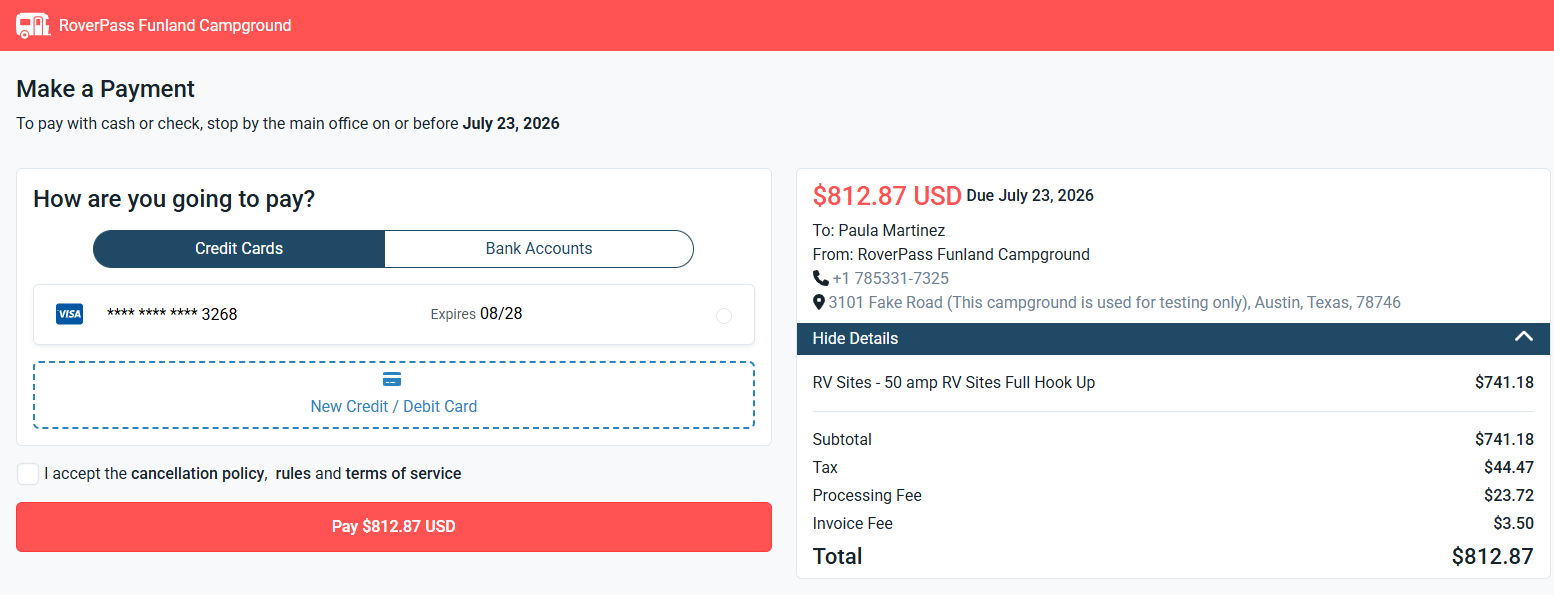
Step 5 (Optional): Enable Autopay
If you'd like future invoices to be paid automatically, you can enable Autopay before completing your payment.
- Open the Payment Methods tab.
- Add a credit card or ACH bank account if you haven't already. C
- Set as Default Payment Method
- Return to the reservation's Payments tab, select your saved payment method, and check Allow campground to use this card for future charges?
Related Articles:
How to Set Up Automatic Payments — ACH and Autopay work together, but they're set up separately.
Need Help?
If you're unable to access your account or experience any issues while making your payment, please contact RoverPass Support, and we'll be happy to assist you.