Automated Cancellations, Structured Cancellation Policies and Calculated Refunds
RoverPass offers you the flexibility to choose your cancellation policy, as well as automatically calculate refund percentages when you choose a Structured Cancellation policy - which can save you time and revenue!
By processing the cancellation, and clearing the calendar, the dates will be available to be rebooked helping you to maximize reservations.

What are 'Structured Cancellation Policies'?
RoverPass 'Structured Cancellation Policies' are 5 pre-built cancellation policies that owners are able to select to best fit the need of their campground. This will automatically display the percentage to be refunded to the camper in the reservation 'Refund' tab based on when the camper requested cancellation. If you need to adjust the refund amount, you can do so by typing within the field.
- You reduce cancellations and retain more booking revenue
- You save time managing cancellation requests and processing refunds
How to Implement Structured Cancellation Policies
1. In your RoverPass Owner Portal, select 'General Settings' to open a drop down menu, and select the option 'Policies'
2. On this page, you will find the section 'Cancellation Policy' below the 'Check In/Out Policy'
3. Click 'Structured Cancellation Policy' and select 1 of the 5 cancellation policies that best fits the needs of your campground. You will see 3 columns (100% Refund, 50% Refund, Non-refundable) which describe the time frame and amount that a cancellation would be eligible for a refund.
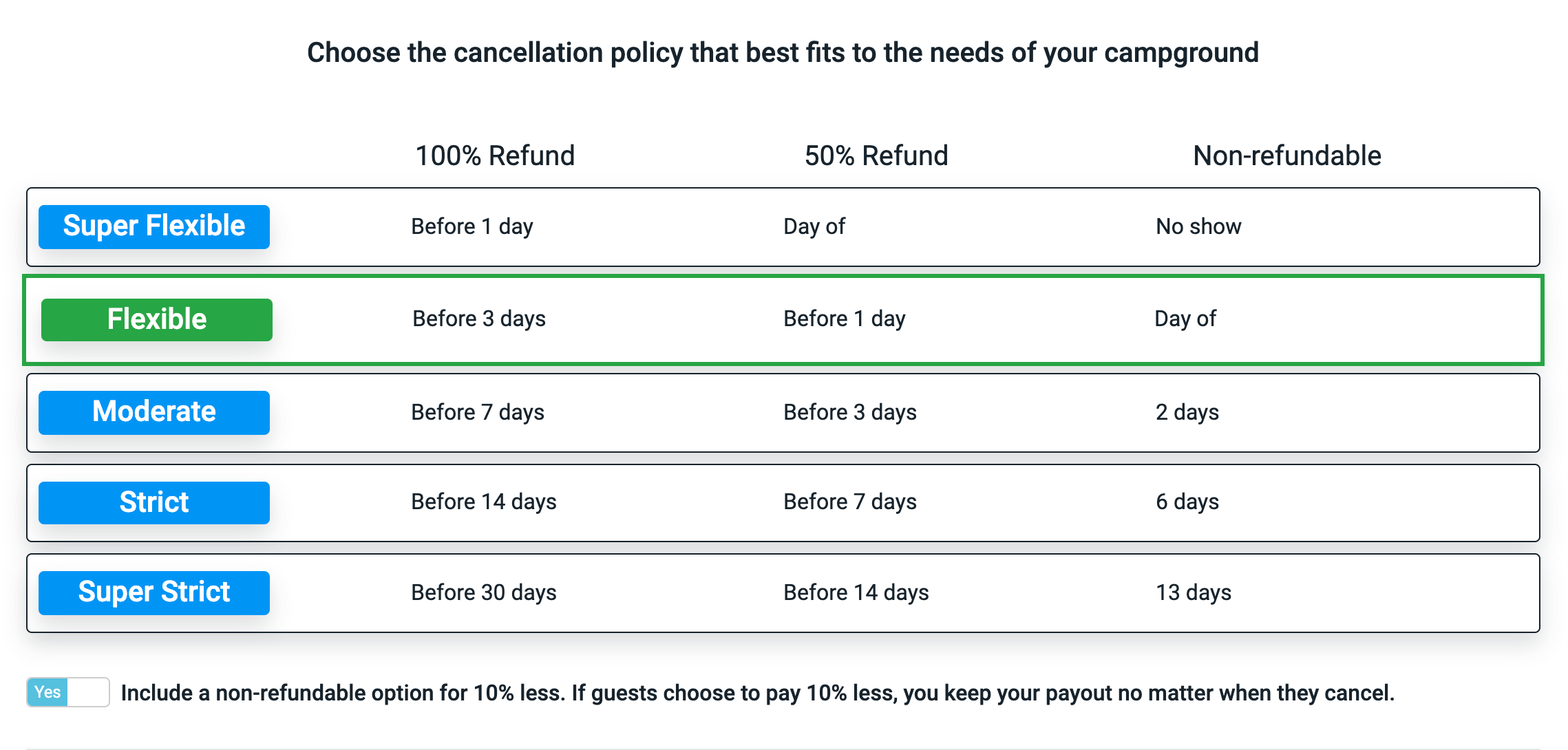
4. The 'Structured Cancellation Policy' that you select will then be highlighted green.
5. Below the 'Structured Cancellation Policy', you will see an option to offer a 10% discount to camper's for a non-refundable reservation. Toggle 'Yes' or 'No' dependent on your campground's needs.
Offering a 10% discount for a non-refundable option is beneficial to Campground Owners because:
- You increase your guaranteed revenue
- Campers are more likely to book your campground
- You still have the flexibility to offer a refund if you choose
- The Non-Refundable 10% discount does not apply to the entire reservation Subtotal but only to the reservation Site Cost and Extra Fees (people, pets, vehicles).
6. Click 'Save Policies'.
Freeform Cancellation Policies
If none of the five Structured Cancellation Policies fit your campground — including if you want a very liberal policy such as a full refund up to and including the day of check-in — use a Freeform Cancellation Policy. You write the policy text yourself, it is displayed to campers at checkout and on their confirmation, and you process refunds manually in line with your stated terms.
1. In your RoverPass Owner Portal, select 'Reservation Setup' to open a drop down menu, and select the option 'Policies'
2. On this page, you will find the section 'Cancellation Policy' below the 'Check In/Out Policy'
3. Select 'Freeform Cancellation Policy'. You will see a text box where you can describe your campground cancellation policy, which will be displayed the the camper at checkout as well as on their confirmation page.
4. Click 'Save Policies'.