Multiple Payment Reservations
How Do I Take Payment for a Reservation in More Than One Installment? Read On!

How to Create a Reservation with Multiple Payments:
Step 1: Login through the RoverPass Owner Portal Sign In Page
Step 2: Click ""Create Reservation"" on the left navigation bar or from the top of the calendar tab
Step 4: In the 'How Many Payments?' section, select the number of payments that you would like to break this reservation into (2 is the most popular for Owners who only take Partial Payment at the time of booking, but you can choose anywhere from 1-12 payments per reservation).
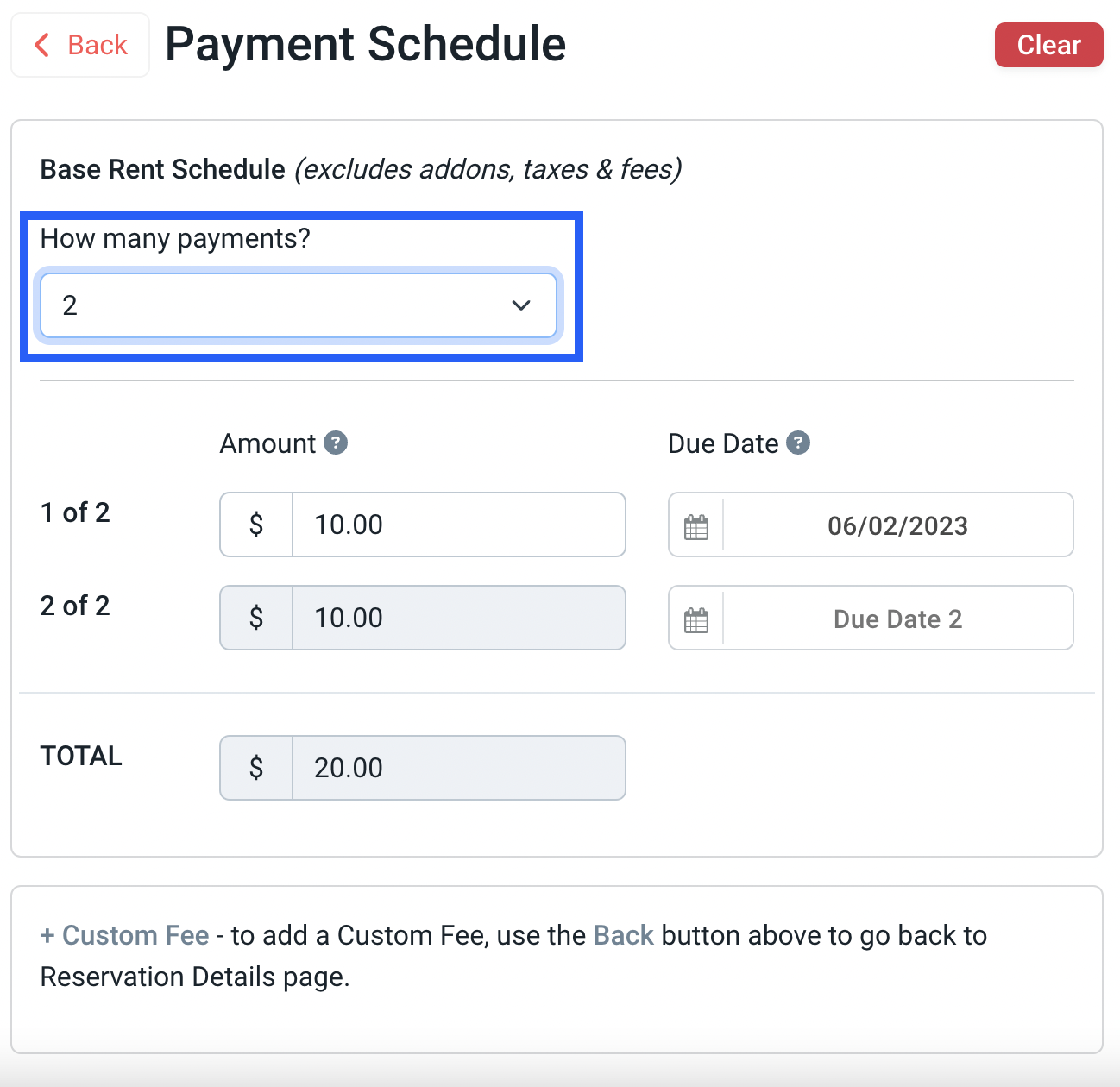 Tip: If you do not want your payments to be split evenly among the installments, you can change each installment amount in the 'Amount' section. The following installments will automatically adjust to capture the balance of the reservation.
Step 5: In the 'Due Date' section, select the date that each payment will be due.
 Please Note: You must select Due Dates for all installments or you will not be able to complete the reservation.Tip: For owners who take only partial payment at the time of booking, you will likely want to set the Due Date for Payment 1 to Today's Date and the Due Date for Payment 2 to the check-in date.
Step 6: Click 'Proceed to First Payment'.
Step 7a: To Take Payment Right Now : Select 'Credit Card', 'Cash', or 'Check,' enter the necessary information and click 'Pay & Complete'.
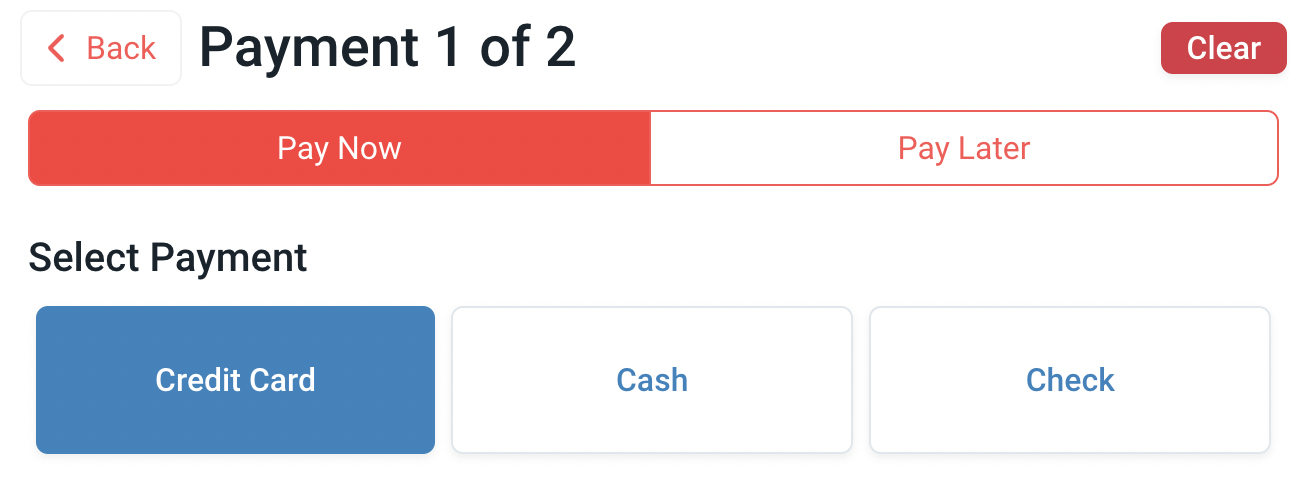
Step 7b: To Take Payment Later : Use the 'Pay Later' feature.
Please Note: The first invoice will include additional one-time fees being charged such as add-ons or custom fees. These will not be split across the installments.Step 8: Once you have completed the reservation by processing payment or utilizing 'Pay Later', you are ready to head over to the 'Invoices' tab in the left hand navigation bar of your RoverPass Owner Portal!
- If the guest pays through an invoice, the invoice will show as paid.
- If the guest pays at arrival, campground management should navigate to the invoice to mark it paid to bring the balance of the reservation down.
The majority of this article revolves around reservations created in the Reservation Builder of the Owner Portal. If you would like to take payment for online reservations in Multiple Installments, proceed to 'System Settings' and select an option under the question ""How much would you like to collect upfront?""
This setting will charge the amount you choose at the time of booking online and create 1 additional invoice to collect the balance of the reservation on the check - in date of the reservation.
🚫 Important: Multiple Payment Methods Not Available Yet
Paying a single invoice with more than one payment method (e.g. part by card and part by cash) is not currently supported.
Our team is actively working on this feature, and we’ll be sure to let you know as soon as it becomes available!