Invoices Overview
Invoices allow flexibility in taking payment for a reservation.
With invoices, you can adjust the number of payments, due date for payments, balance, and total for a reservation! Once created, the invoices tab organizes them for you!

Invoices must be associated to a reservation. You can create invoices in one of two ways:
1. At the time of reservation creation with Multiple Payments or Pay Later
2. By adding an invoice to a reservation after creation
Invoices cannot be created in the General Store or other places within RoverPass.
How to Navigate the 'Invoices' Tab
Step 1: Login through the RoverPass Owner Portal Sign In Page
Step 2: Click into the 'Invoices' tab on your left hand navigation bar under ´Transactions´
Step 3: Choose your next action:
- Search to locate a specific invoice
- Review all Invoices of a particular status
- Review the payout status of any invoice.
Search to Locate a Specific Invoice:
- To locate invoices for a particular guest, use the Search Bar to search by:
- Last Name
- First Name
- Email address
Review All Invoices of a Particular Status:
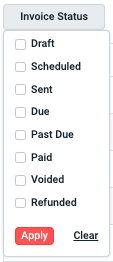
- Draft: Invoices Created with the 'Create Invoice' Feature that have not yet been Scheduled or Sent. You can choose to Schedule, Send, or Delete these invoices.
- Invoices in this state do not affect the balance of the reservation
- Scheduled: Invoices that are to be automatically sent to the guest (via email) on the 'Send Date'.
- Considered in the balance of the reservation
- Sent: Invoices that have been sent to the guest and are awaiting payment.
- Considered in the balance of the reservation
- Due: Invoices that have reached their Due Date but have not yet received payment.
- Considered in the balance of the reservation
- Past Due: Invoices that have passed their Due Date but have not yet received payment.
- Considered in the balance of the reservation
- Paid: Invoices that have been paid by the guest.
- Considered in the balance of the reservation
- Voided: Invoices that were Voided by Property Staff. *Invoices can only be voided if they have not yet received payment. Invoices in the Draft state, can only be deleted (not voided).
- Invoices in this state are removed from the balance of the reservation
- Refunded: Invoices that were paid and were then issued a partial or full refund by Property Staff.
- Considered in the balance of the reservation

You can edit invoices in the Draft and Scheduled states.
You cannot edit invoices in the Sent, Due, Paid, Voided, or Refunded states.
Review the Payout Status of Any Invoice:
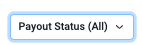
Once the guest has entered payment via Credit Card on an Invoice, it will take a few days to reach your account. You can check the status of a payout for any particular invoice by clicking here.
- Pending: The guest has initiated payment, the processor has started to process it, and the money has not yet been transferred to your Stripe Connect Account.
- Completed: The processor has successfully transferred the payment to you Stripe Connect Account. (This triggers the payout from your Stripe Connect Account to your Bank Account).
- Cancelled: Payout was cancelled because the guest's payment failed. This will cancel the reservation simultaneously.
Please Note: The Payout Status Filter applies only to invoices paid by credit card as the payment processor does not touch your cash or check payments for invoices.
Quick Tips:
- From the 'Invoices' tab:
- Sort by any of the column headers by clicking the arrows next to the header itself
- Click into the invoice by clicking anywhere on the row of the invoice that you would like to open
- See the full Reservation Details of the reservation each invoice is attached to by clicking 'Reservation Details'

- From the Invoice Details (Individual Invoice):
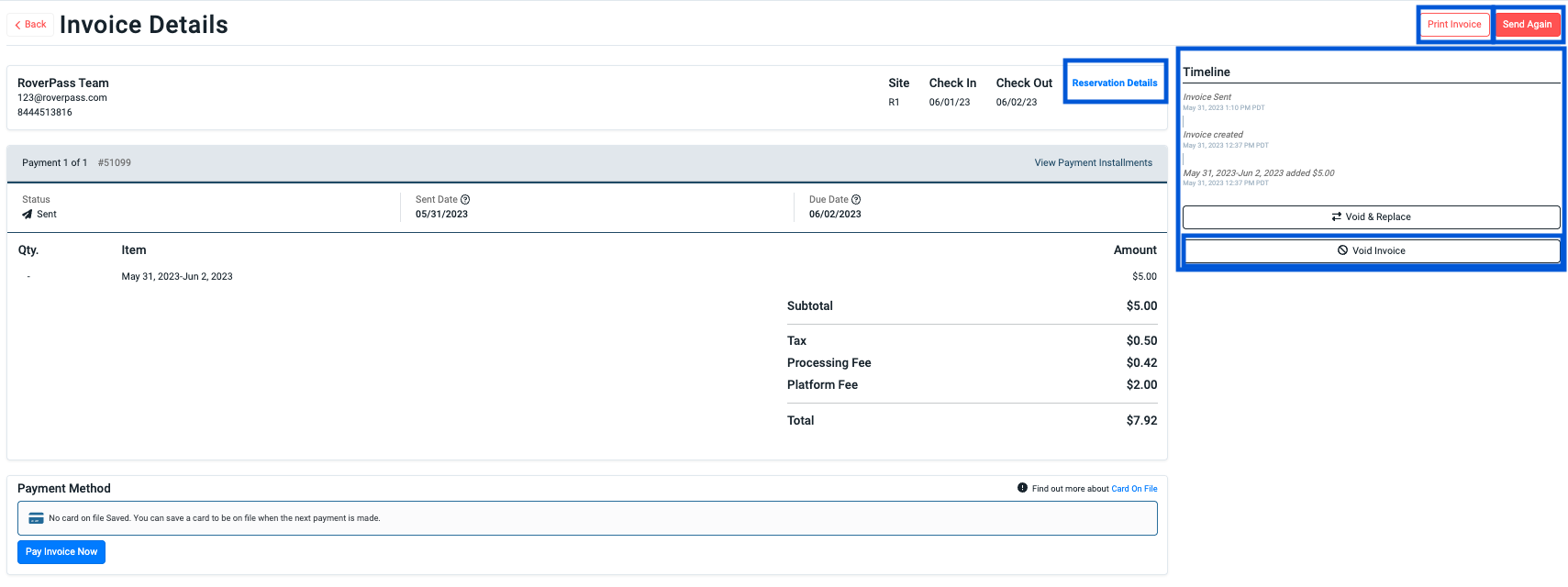
- See the Invoice Timeline on the right to recollect when the invoice was created, sent, paid, etc
- Access Full Reservation Details by clicking 'Reservation Details'
- Send the Invoice (off schedule) to a Guest by clicking 'Send Invoice' or 'Send Again.' *All invoices will send automatically to the guests on the dates you have selected.
- Print the invoice by clicking 'Print Invoice'
- Void Invoice by clicking 'Void Invoice' on the right hand side
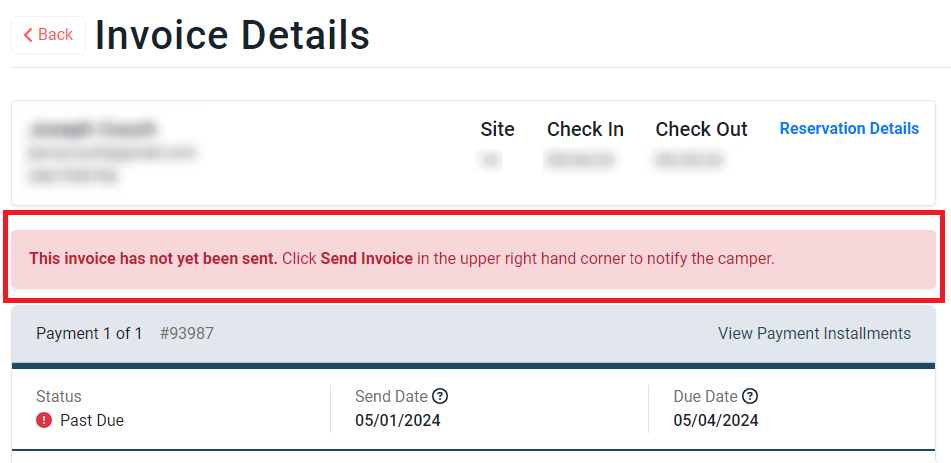
- There will be an alert shown on the Invoice Details page when an invoice has not been sent yet but is already due.
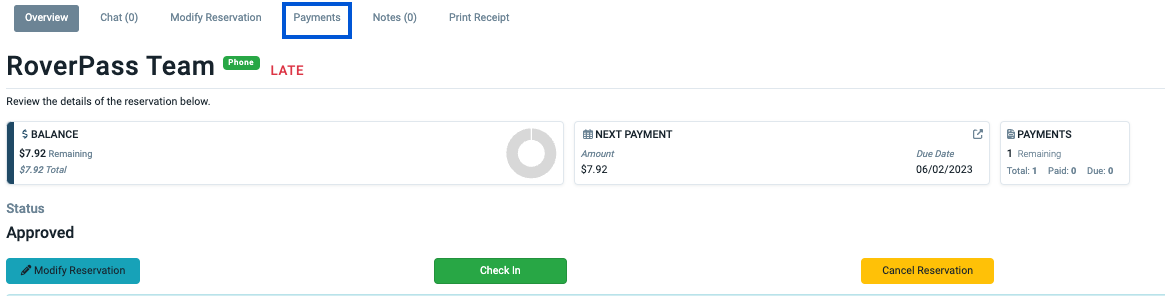
- From the Reservation Details Page. Locate invoices for a specific reservation by navigating to:
- The Payments tab at the top of any reservation
- The Payments tab at the top of any reservation
Feature Update: Owners can now easily see the breakdown of line items within an invoice, including any extra fees and discounts included in the total amount!
Please Note: RoverPass encourages collecting payment at the time of booking (or as close to it as possible!) to ensure that you get paid and are able to enforce your Cancellation Policy.