In your dashboard, look for Coupon Codes in the left-hand menu.
How to Use Coupon Codes
You can now create and manage Discount Coupons right from your dashboard! These can be general codes anyone can use or personalized ones made just for a specific camper.
🧭 Where to Find It
This section has two tabs:
Credits– coupons for specific campers (requires their email).
Coupon Codes – general coupons anyone can use.
Each tab has a list of coupons you’ve created. Here's what you'll see:
For Both Tabs:
Code – the actual coupon code (with a colored dot showing status).
⚪ Gray Trash Icon: archived 🟢 Green: active 🔴 Red: inactive
Description – a short note about what it’s for.
Value – discount amount (%, dollar, or per night).
Valid From / Until – when the coupon is active.
Redemptions Left – how many times can it still be used.
Credits Tab Only:
Email – to whom the credit is assigned.
⚙️ Creating a Coupon
Click + New Coupon and fill out the form:
Step-by-Step:
Code – Use UPPERCASE letters/numbers only (no symbols).
Description – Optional note. Only visible to the campground.
Dates – When the coupon should work (start and end). If Valid Until is left blank, the coupon never expires
Redemptions – Set how many times it can be used.
This section includes a type selector between Credits and Coupons, which affects the fields shown:
Credits
- Redemption Limit: The total number of times the credit can be used. 0 = unlimited.
- Assign coupon to email: Required. Email of the camper who will use this credit.
Coupons
- Redemption Limit: Total number of times the coupon can be used (regardless of who uses it).
- Redemption Limit per User: Max number of times each camper can use the coupon.
Coupon Type
Percentage – Like 20% off (optional max discount). Must be greater than zero.
Optional Max Value (in USD): caps the discount amount regardless of the percentage.
Example 1:
20% off with a $30 max value, on a $200 reservation:- 20% of $200 = $40
- But you set the max to $30
- So the guest only gets $30 off (not $40)
Example 2:
25% off with a $50 max value, on a $150 reservation:- 25% of $150 = $37.50
- $37.50 is less than the $50 max
- So the guest gets the full 25% off, or $37.50
Example 3:
10% off, no max value, on a $500 reservation:- 10% of $500 = $50
- The guest gets the full $50 off, because there's no limit
In short:
The percentage decides the discount, but the max value puts a ceiling on how much you’ll give.
Dollar Amount – Fixed discount in USD. Must be greater than zero.
Applies directly to the reservation total.Per Night – Discount per reserved night. Applies the set amount multiplied by the number of nights.
Example: $5 per night x 7 nights = $35 discount.
Advanced Settings (Optional)
- Advanced Date Range + Checkbox
If the checkbox is not checked, the coupon applies if at least one night of the camper’s reservation falls within the advanced date range.
If the checkbox is checked, the camper’s reservation must be completely within or exactly match the advanced date range. - Days of the Week
If no days are selected, the coupon applies on any day.
If specific days are selected (e.g., Mon and Tue), the check-in must fall on one of those days. - Max Number of Nights
Limits how many nights the camper’s reservation can be for the coupon to apply.
Example: If set to 30, only reservations with 1 to 30 nights are eligible.
- Advanced Date Range + Checkbox
✏️ Editing Coupons
You can edit coupons anytime using the menu. When you make changes, they’ll only affect future reservations. Bookings already made won’t be updated.
🎟️ Applying Coupons
Campers, when booking online:
Campers can enter a coupon code at checkout under the Discounts section.
Owners, through the Reservation Builder:
You will find the Coupon code field at the bottom of the reservation form in your Reservation Builder.
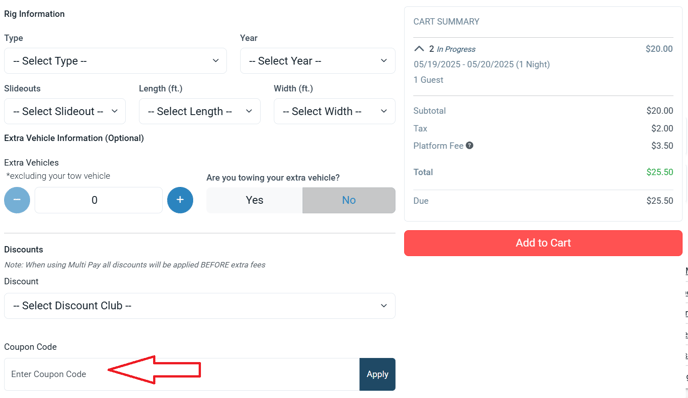

Note: The coupon will still follow all the same rules—like valid dates, number of nights, allowed days, and how many times it can be used—just like if the camper applied it themselves.

🚫 Important Notes
You can’t combine a Discount Club and a coupon—only one can be used.
Group bookings? The coupon applies up to the set redemption limit.
Coupons need a checkout date to work.
Coupons only apply to the subtotal (not taxes/fees).
- Unlimited coupons per campground.
Want to deactivate a coupon? Archive it or update the date range.
Need help setting up your first coupon? We’re here for you—just reach out to our support team at [email protected] 😊
Related article: Coupon Codes FAQ!