How to Enable Autowaivers
- Step 1: Submit a Request Form:
Click here to access the request form. Complete the form to indicate your interest in this feature and your acceptance of the Terms of Service.
Step 2: Provide a Waiver Template:
-
After submitting the form, you will receive an email requesting your waiver template.
-
If you do not have a template, a sample waiver will be provided to help you create one.
-
Step 3: Account Setup:
-
Once your template is submitted, our team will create an account in our e-signature service and connect it to your RoverPass account.
- The email in which you will recieve the waivers notifications will be the same as the one you use to login into your RoverPass account. If you need to change this email you will need to notify the new email to [email protected]
-
Step 4: Testing and Activation:
-
Our team will test the integration to ensure proper functionality before activating the feature.
-
Step 5: Go Live:
-
Once activated, the feature will automatically send waivers to campers and track usage in your dashboard.
-
Usage Tracking and Management
- Emails Notifications
Emails Sent to Campers:
Campers will receive an email from [email protected] with a link to E-sign their waiver. The email will provide clear instructions, ensuring a seamless signing process. (The waiver will be sent to the guest approximately 20 minutes after the reservation is made)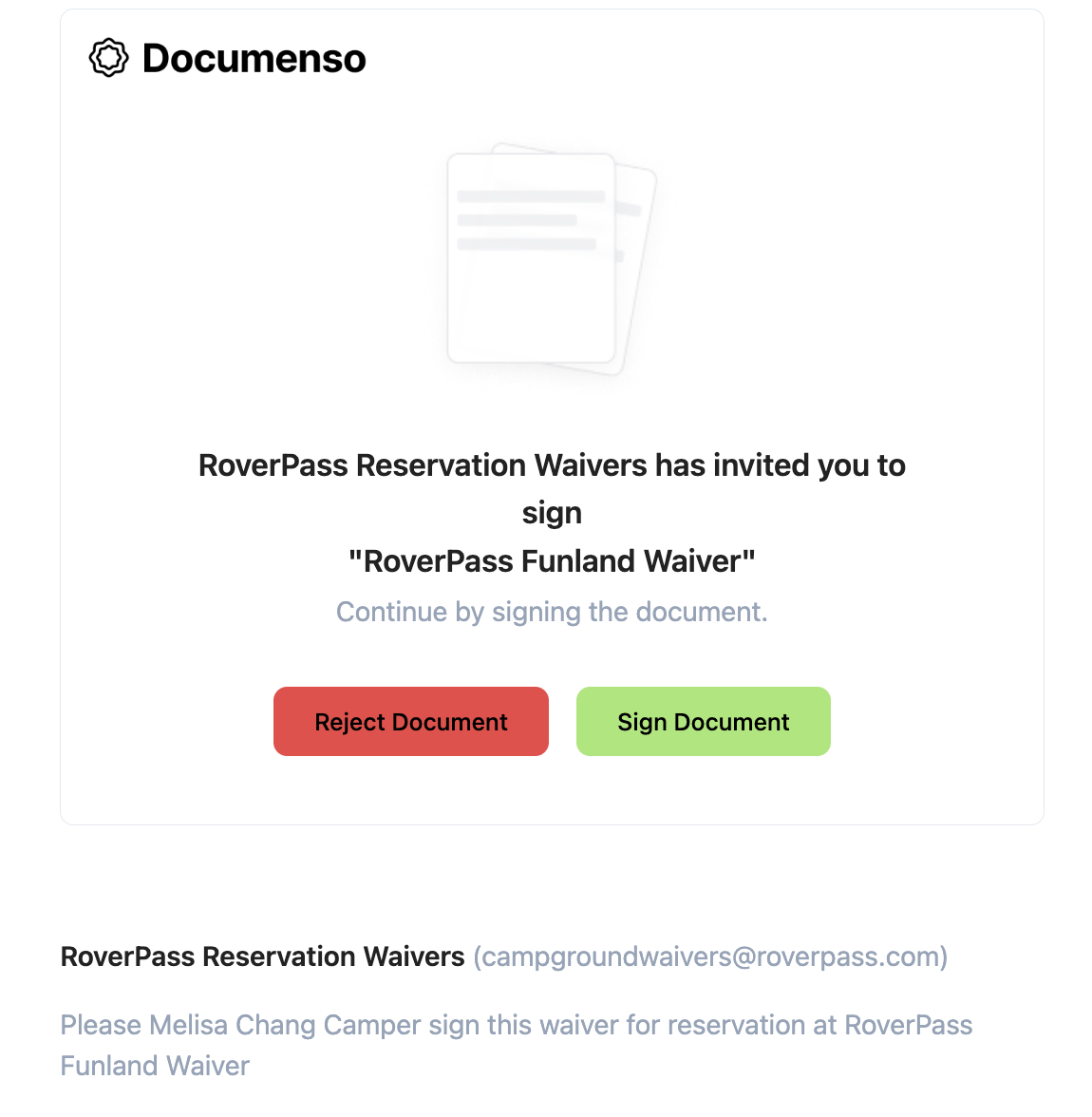
Emails Sent to Campground Owners:
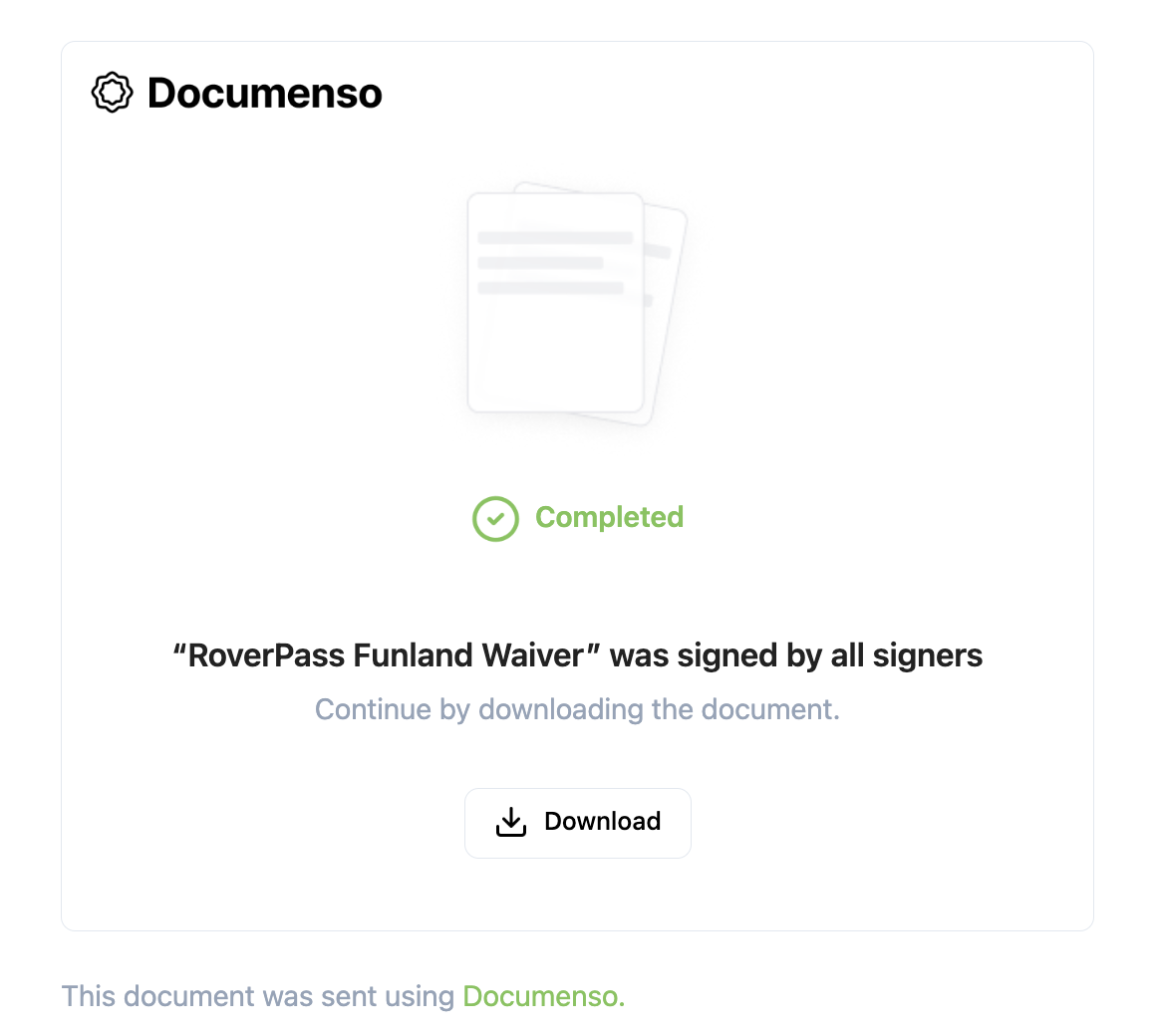
Once a camper E-signs their waiver, a confirmation email will be sent to the campground owner's registered email (the email linked to their RoverPass account). This email, also sent from [email protected] will include the camper's name, details of the signed waiver, and the signed waiver document as an attachment.
- Dashboard:
- Once the integration is set up, you will receive an email with a link to your personalized dashboard.
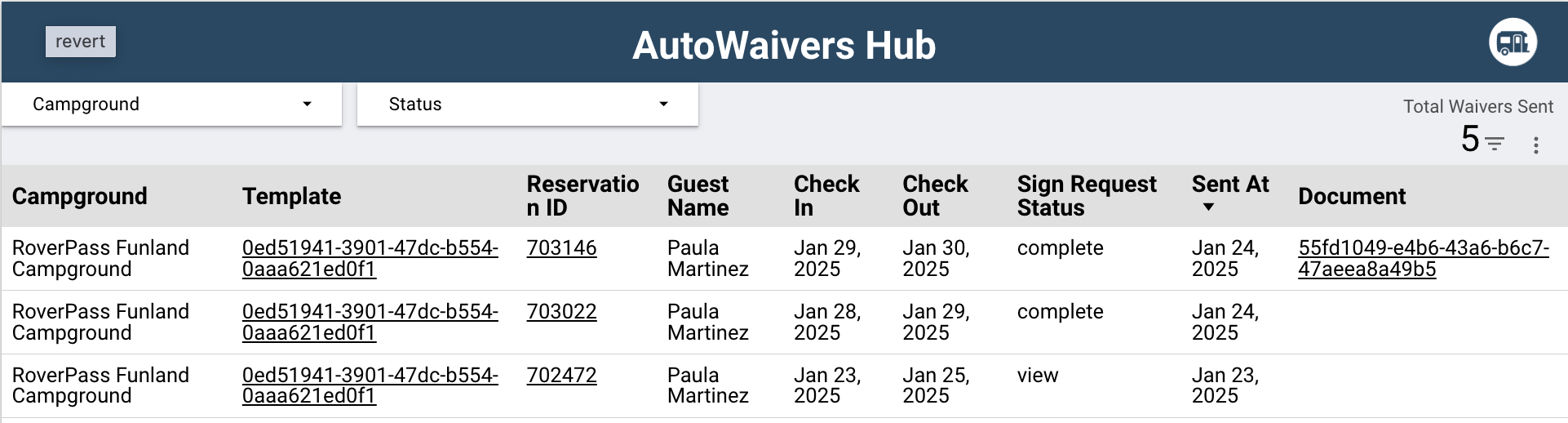
- Your dashboard will provide an overview of your waiver usage and associated charges. Key features include:
The total number of waivers sent.
A detailed breakdown of waivers signed by campers.
The total cost incurred during the current billing cycle.
Adjustments and Deactivation:
-
To adjust or deactivate AutoWaivers, please contact our support team at [email protected]
-