Add Security Deposits & Cleaning Fees in RoverPass

How to add Security Deposits / Cleaning Fees to reservations

Need to add a Security Deposit or a Cleaning Fee for some of your sites? Here´s how:
Technically there is not a place in RoverPass to add refundable deposits because all states have different rules and regulations around how these are handled. Some areas require that deposits be kept in an entirely different bank account. We would suggest that you double check that for your area.

Although there is not a feature built directly for refundable deposits, there are 3 places in the app that allow you to add a one-time additional fee should you choose to use them.  These will pay out the same way as your reservations and be subject to the same processing fees, but you are welcome to use them if you choose to.


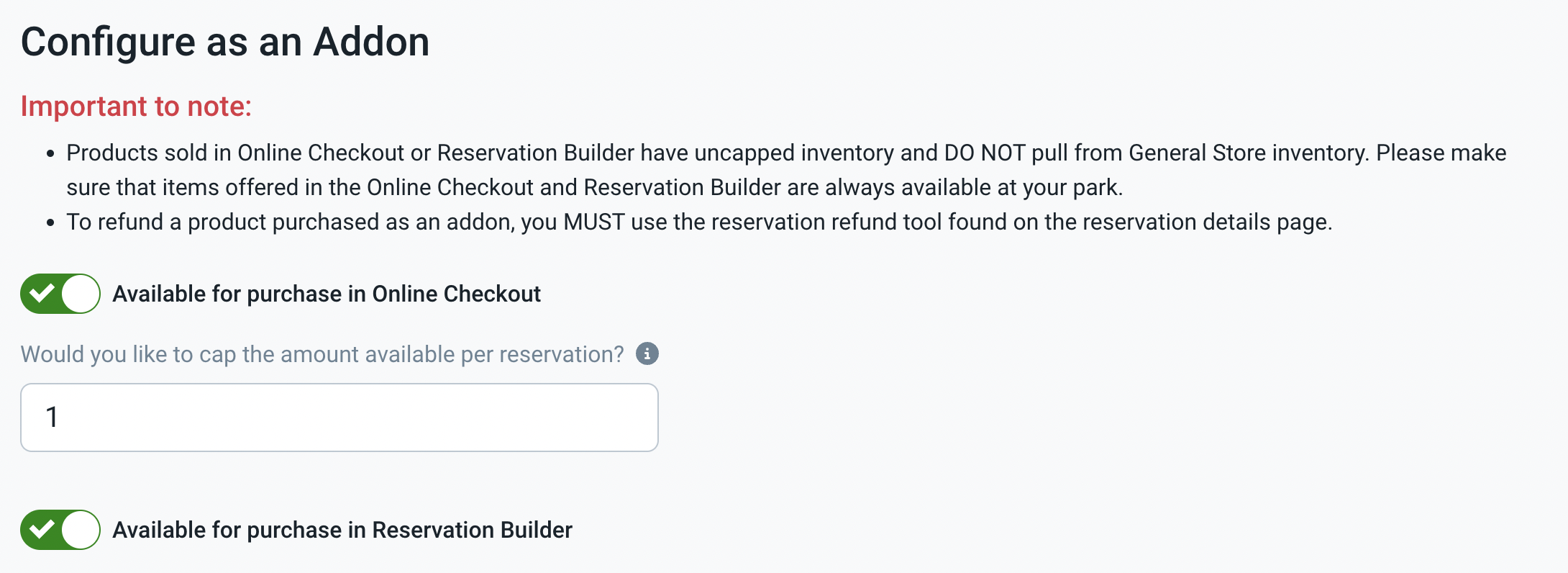
  1. Add-on in your online checkout.  You would add this fee in your General Store and title it something like ""Cleaning Fee (Required)."" Be sure to Toggle it on as ""Available for Purchase in Online Checkout"", cap the amount available as ""1"", and toggle it on on the Site Types you wish to apply it to (as shown in the images below).  You can also click to make this fee required so that it will automatically add to each reservation. 
 

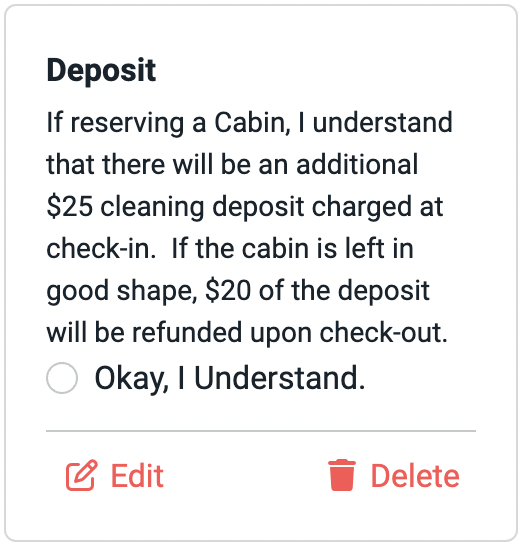
2.  Charge the fee at check-in.   You could add an acknowledgement box on your checkout to ensure that campers are aware of the additional fee that will be charged at check in.  Upon check-in, collect the deposit.  See image below for a suggestion on how you might apply an acknowledgment box.   
 

3.  If the reservation is one that you are entering through the Reservation Builder, you can add an extra fee in the "Custom Fees" Section on the Reservation Builder upon reservation creation.  See image below.


Please note:  Any money processed via a credit card through the RoverPass System will follow the same refund policies of all other transactions on RoverPass (processing fees are non-refundable) as they are not refunded to RoverPass once the money is processed, regardless of if it is refunded.

    • Related Articles

    • Entering Group Booking Reservations

      Got a big party at your park? No problem! you can now enter all their reservations in one single transaction. Keep reading to learn how: Creating a Reservation: From the Reservation Builder Step 1: Login through the RoverPass Owner Portal Sign In ...
    • Adding Electrical Fees to Invoices Manually

      How to add Electrical Fees manually in RoverPass. Simply apply these fees to your guests monthly invoices to collect payment. Charging Electric Fees on Invoices: Step 1: Locate the invoice that you want to add an Electrical Fee to Step 2: In the ...
    • Creating a Reservation from the Reservation Builder

      Step 1: Login through the RoverPass Owner Portal Sign In Page Step 2: Click the ""Create Reservation"" in the left hand sidebar or from the top of the calendar tab Step 3: Enter the dates that the camper is inquiring about Step 4: Use the 'Filter By' ...
    • Understanding RoverPass Fees

      When processing reservations through RoverPass, you may see different fees associated with each transaction. These fees cover different services, including payment processing and access to the RoverPass platform. Understanding the difference between ...
    • Late Fees

      Owners can now set up and edit Late Fees to ensure they get paid on time! Late fees were designed to be used only for long term reservations; so they will only apply to long term reservations. The 45 night rule is what defines a ""long term"" ...