Edit an Invoice
Need to make changes or add fees to an invoice? Follow these steps!

You can edit invoices in the Draft, Scheduled, and Past Due states.
You cannot edit invoices in the Sent, Due, Paid, Voided, or Refunded states.
If the Invoice is in the Draft, Scheduled, or Past Due State, you can:
- Edit the individual invoice 'Send Date' (Draft and Scheduled Only)
- Edit the individual invoice ‘Due Date’ (Draft and Scheduled Only)
- Edit the amount due for Reservation Payment
- Add/edit the amount due for Electrical Fees
- Add/edit Other Fees
- Delete the invoice (Draft state only; not Scheduled or Past Due states)
- Void the Invoice (Scheduled and Past Due states; not Draft state)
- Void & Replace an invoice (Past Due Only; not Draft or Scheduled states)
If the Invoice is in the Sent, Due, Paid, Voided, or Refunded, you cannot edit the invoice, instead you can:
- Sent or Due:
- Void
- Void & Replace
- Paid:
- Refund a credit card payment (& Create a new invoice if necessary)
- Refunded or Voided:
- --- No action (or Create a new invoice if necessary)
To Edit the Line Items on an Invoice:
1- Click the blue edit pencil next to the line item you wish to edit
2 - Choose the correct 'Item Type' (See the Green Note below for further explanation about Item Types)
3- Adjust the required information
4- Click 'Save'.
The categories 'Reservation Payment', 'Other', and 'Electrical Fee' were created to ensure the correct tax would be applied per item. Learn more about that here.
To ensure reporting and balances are accurate, invoices can have:
* 1 'Reservation Payment' Item Type per invoice
* Multiple 'Other' Item Types per invoice
*Multiple 'Electrical Fee' Item Types per invoice
To Add Line Items to an Invoice:
1- Click '+ Line item' or '+ Electrical Fee'
2- Choose the correct 'Item Type' (See the Green Note below for further explanation about Item Types)
3- Add the required information
4- Click 'Save'.
To Edit the Send or Due Date on an Individual Invoice:
1- Click the edit pencil next to the Send or the Due Date (depending on which one you want to edit)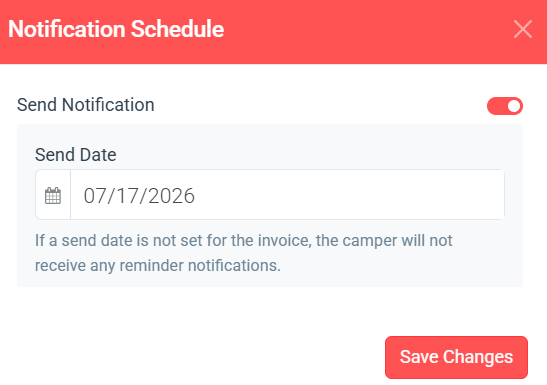
2- Enter the Date
3- Click Save
While RoverPass encourages collecting payment at the time of booking (or as close to it as possible!), RoverPass provides the option to create an invoice without sending it. This allows owners to take payment upon arrival. Please be sure to turn the 'Send Notification' on if you want the invoice to be sent.