Knowledge base

Creating a Reservation: From the Calendar Tab

Step 1: Login through the RoverPass Owner Portal Sign In Page

Step 2: Click the 'Calendar' tab in the left hand sidebar

Step 3: Select the calendar block(+Add) for the site/dates you would like to book the reservation for

*Please note, you must extend the end date field to the correct check-out date for the reservation, or else the reservation will only show for the one night block originally selected.* 
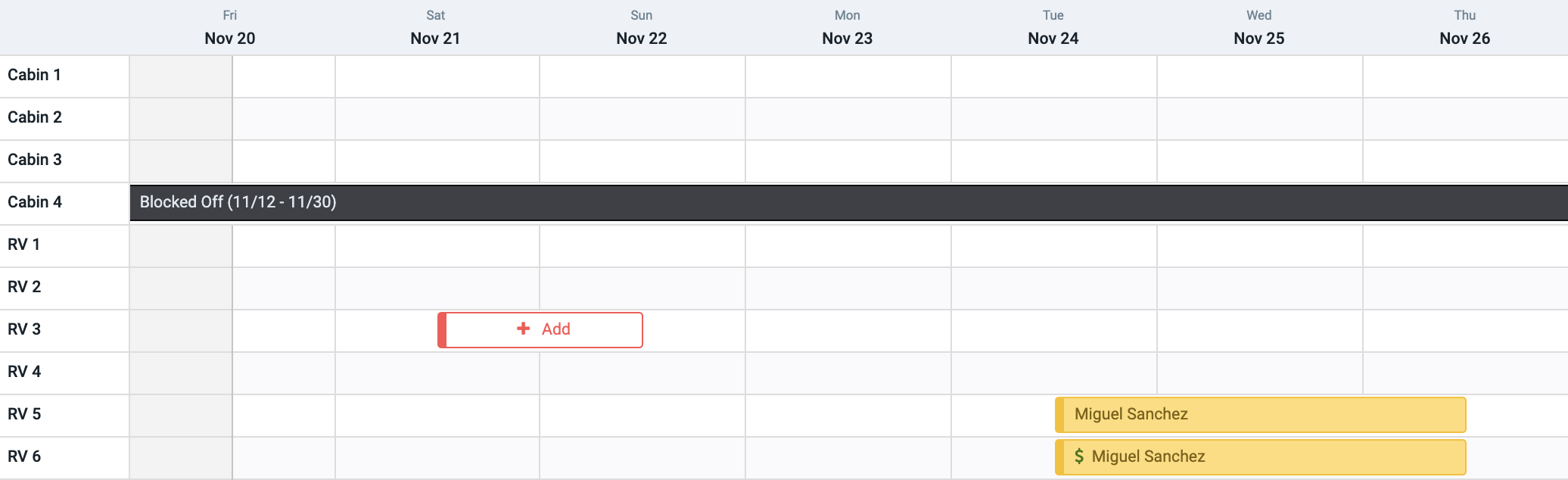
RoverPass calendar showing site and dates availability

OR

Select the 'Create Reservation' button at the left-hand sidebar of your Portal

RoverPass calendar view with active reservations of Cabins

Step 4: Click the 'Add Reservation' button 
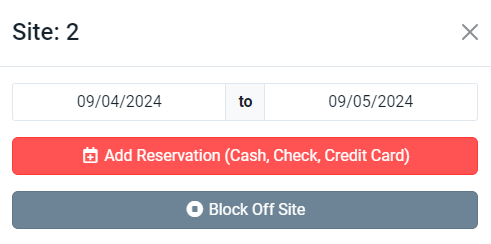
Reservation window with date selection and payment options.

Step 5: Use the 'Filter By' section to filter by which type of site your camper is looking for (RV Site, Tent Site, Cabin etc.)

Step 6: Scroll to the Site Plan Type and Specific Site number your camper is interested in and select the site type by clicking the blue 'Select' button
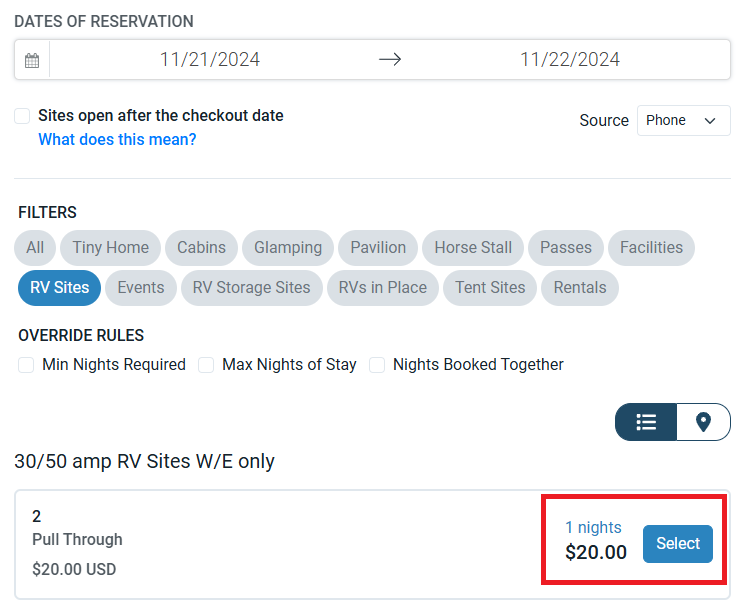
RoverPass Reservation Builder Dashboard with filters

Step 7: Enter the 'Camper Information' section, 'Rig Information' section, and any Discounts or Add On's if applicable. 

Step 8: Click the 'Add to Cart' button in the bottom right-hand corner 
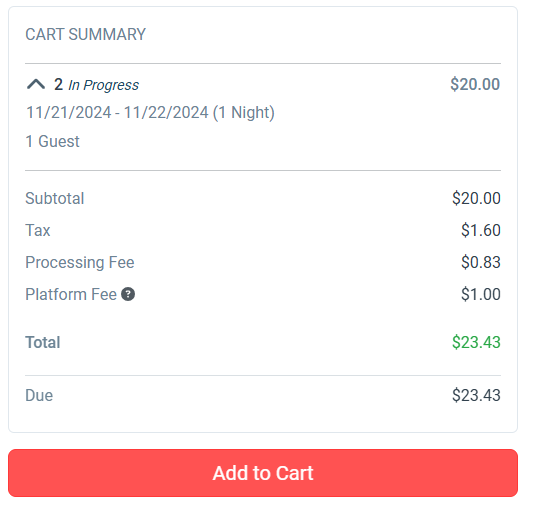
Cart summary with an example of 1 night 1 guest

Please Note: If you need to adjust the price on a reservation, you will do so using the 'Edit Amount' button after adding the site to your cart.

Step 9: Click the red 'Proceed to Payment Schedule' button in the bottom-right corner. 

Select in how many installments this reservation should be paid:
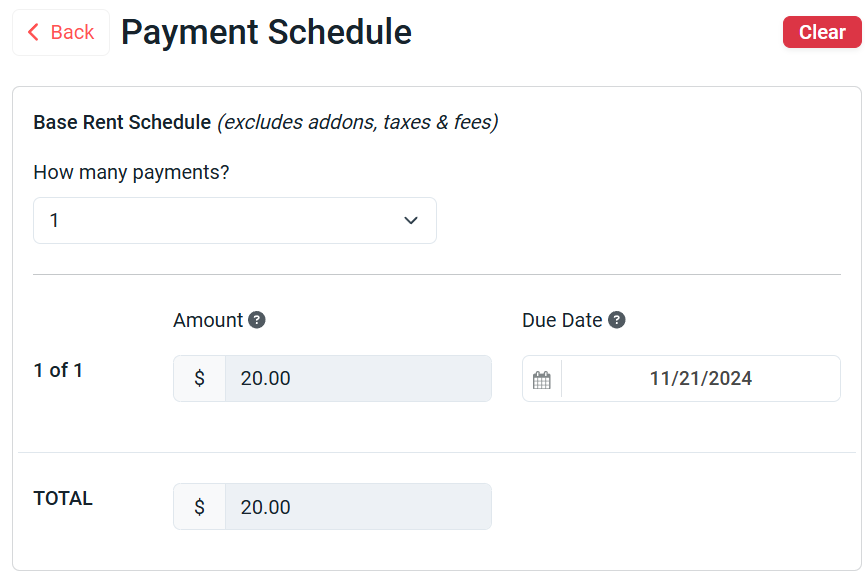
Payment Schedule platform showing the options of number of payments, due dates y total

Step 10: Click 'Proceed to First Payment' and select the appropriate tab on how the camper would like to pay for the reservation (credit card, cash, check)
    • Pay Now:
      • Pay with Credit Card
      • Pay with Cash
      • Pay with Check
    • Pay Later:
      • An invoice will be sent to the camper so they can pay online. 
Step 11: Select the red 'Pay & Complete' (if you select 'Pay Now') or 'Complete Reservation' (if you select Pay Later) buttons to enter this reservation into the system. 

How to Backdate a Reservation

Need to create a reservation with a past check-in date? Follow these steps:

  1. Create the reservation as normal, using today’s date as the check-in date.

  2. Once the reservation is completed, go to the reservation and click ""Modify Reservation.""

  3. Update the check-in date to the actual, past date you need.

  4. Save the changes — the reservation is now successfully backdated.


Idea
You can also create reservations directly from the Reservation Builder. For step-by-step instructions, check out this article

    • Related Articles

    • Creating a Reservation from the Reservation Builder

      Step 1: Login through the RoverPass Owner Portal Sign In Page Step 2: Click the ""Create Reservation"" in the left hand sidebar or from the top of the calendar tab Step 3: Enter the dates that the camper is inquiring about Step 4: Use the 'Filter By' ...
    • Entering Group Booking Reservations

      Got a big party at your park? No problem! you can now enter all their reservations in one single transaction. Keep reading to learn how: Creating a Reservation: From the Reservation Builder Step 1: Login through the RoverPass Owner Portal Sign In ...
    • Creating and Managing Long Term Reservations with Flexible Check-Out and Recurring Payments

      This guide will help you navigate the new functionalities including Flexible Check-Out Reservations, Recurring Invoice Schedules, and Automatic Payments!. What is a Flexible Reservation? A Flexible Reservation allows for an open-ended stay with a ...
    • Multiple Payment Reservations

      How Do I Take Payment for a Reservation in More Than One Installment? Read On! This tool is useful for Owners who prefer to take only partial payment for a reservation up front. When creating a reservation with the Reservation Builder ('+Create ...
    • How to Modify a Reservation

      How to Modify a Reservation Need to update a reservation after it's been created? The Modify Reservation feature allows you to update your guest's stay details without creating a new reservation. Using this feature, you can: Change the check-in or ...