Choose Your Invoice Send Date
RoverPass allows you to choose how far in advance of the Due Date an invoice is sent to a guest and sends reminders if the guest does not pay on time!
Set Your Send Date:
This can be done in two ways:
- Account Wide
- Override on an Individual Invoice
Account Wide Setting
- Navigate to Reservation Setup > General Settings in the left navigation bar of your RoverPass Owner Portal.
- Select when you would like all invoices for your account to send
- 3 Days Before Due
- 2 Days Before Due
- 1 Day Before Due
- On Due Date
- Do Not Send (Not Recommended)

RoverPass offers the option 'Do Not Send' to allow payment to be collected upon arrival. However, RoverPass encourages collecting payment at the time of booking (or as close to it as possible!) to ensure that you get paid and are able to enforce your Cancellation Policy.
Override on an Individual Invoice
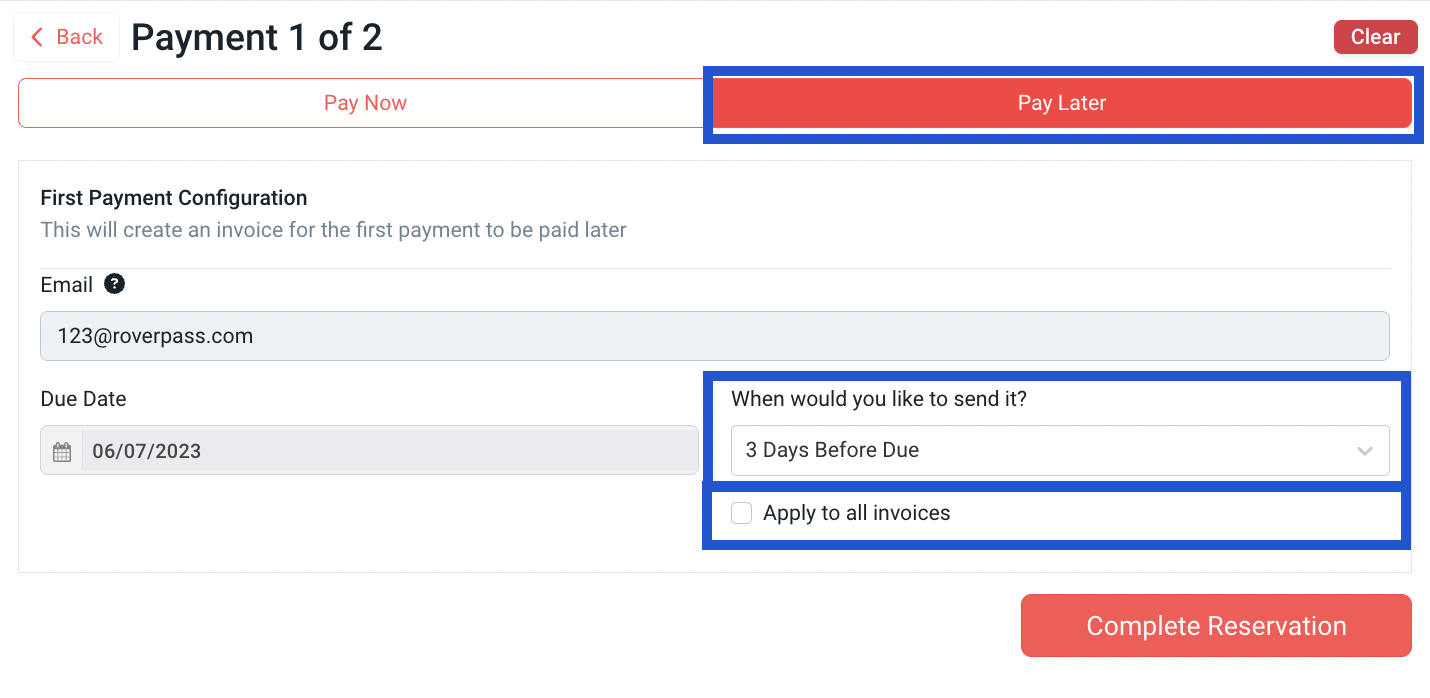
- On the last page of reservation creation, select the 'Pay Later' option
- Select when you would like to send your first invoice
- (This will default to your Account Wide Setting)
- Immediately
- On Due Date
- 1 Day Before Due
- 2 Days Before Due
- 3 Days Before Due
- Do Not Send (Not Recommended)
- If you would like to apply this setting to all invoices on the individual reservation that you are creating, check 'Apply to all Invoices'
- Click 'Complete Reservation'
Reminders
Once invoices are scheduled (reservation is created and Send and Due Dates are set), RoverPass will send out payment requests and reminders to your guests. These reminders include:
- Sent (On Send Date)
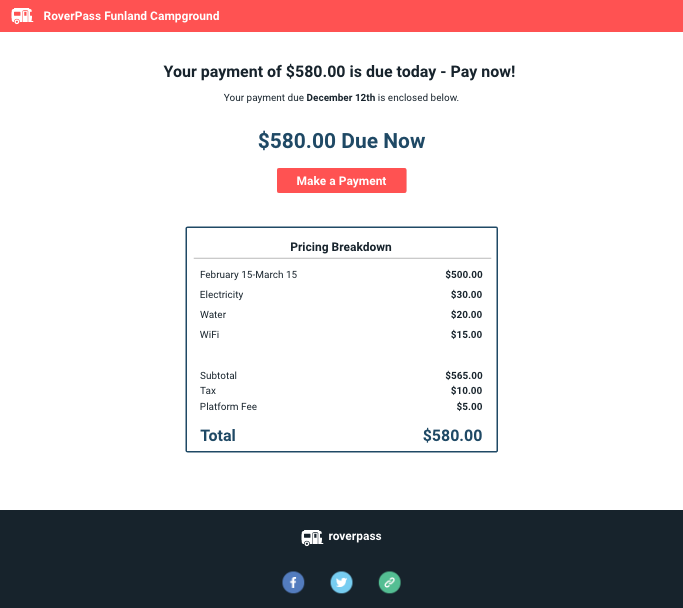
- Due Now (On the Due Date)
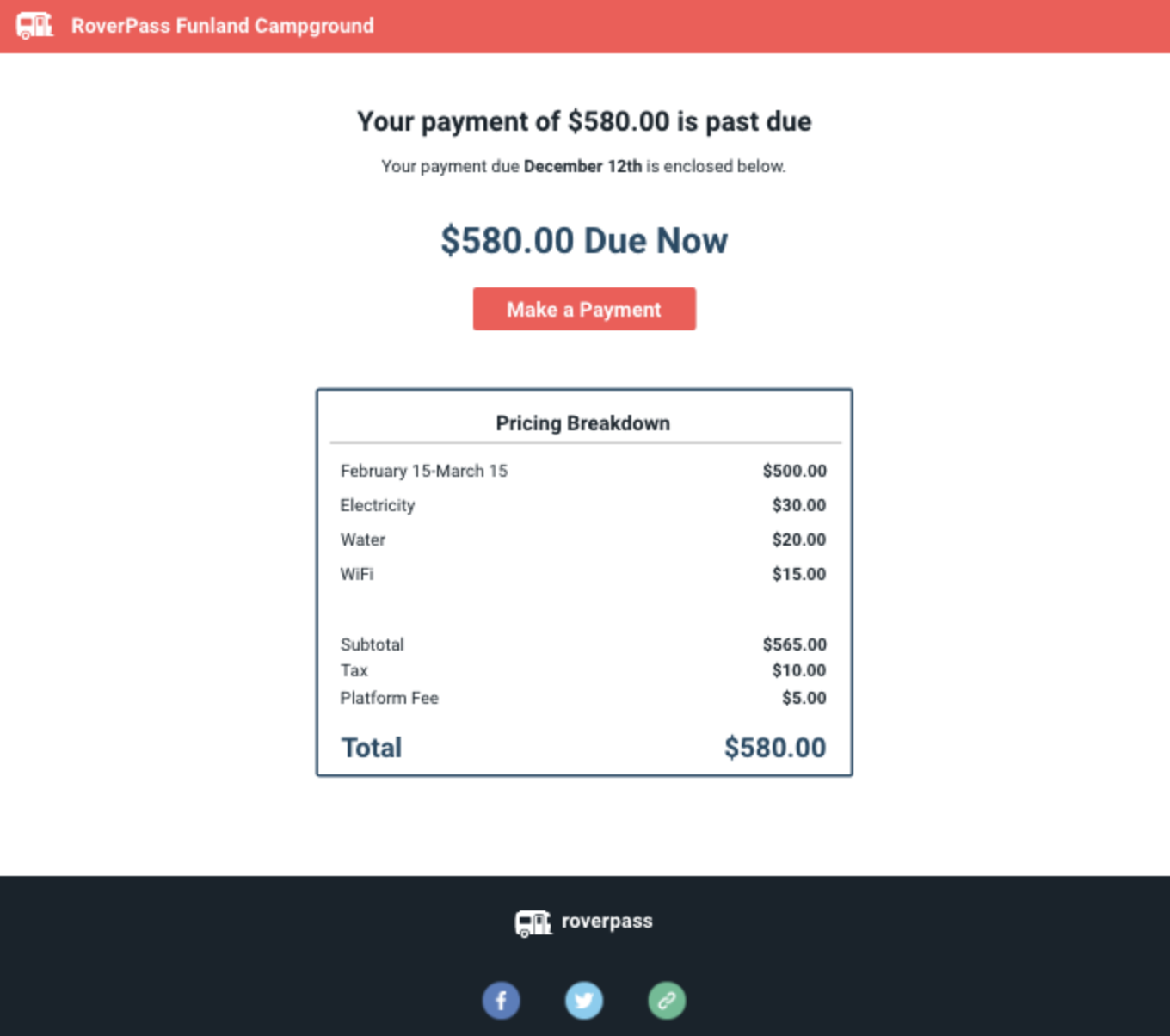
- Past Due (Once the Due Date Passes)
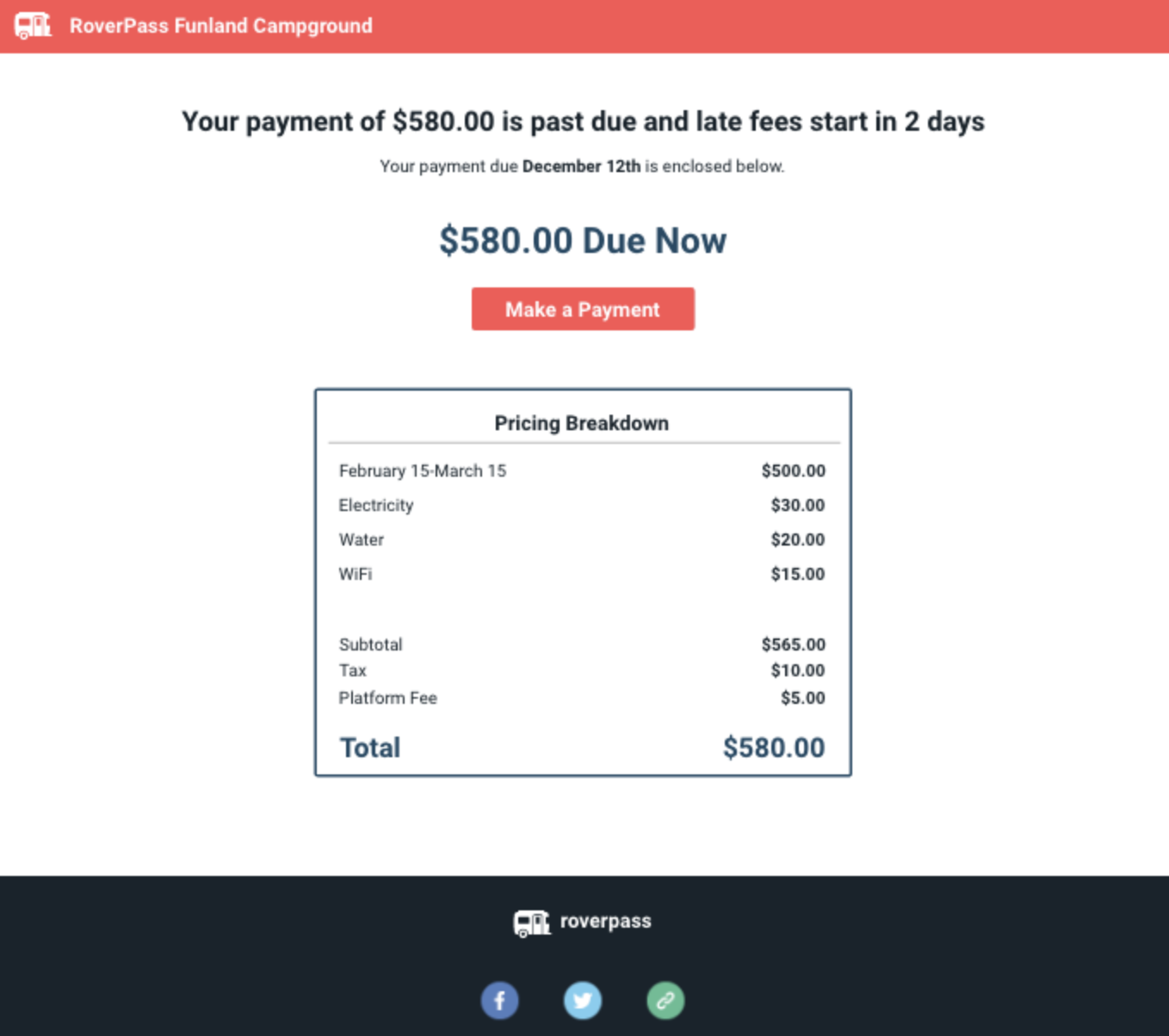
- Past Due with Late Fee Warning (Based on your Late Fee Configuration)
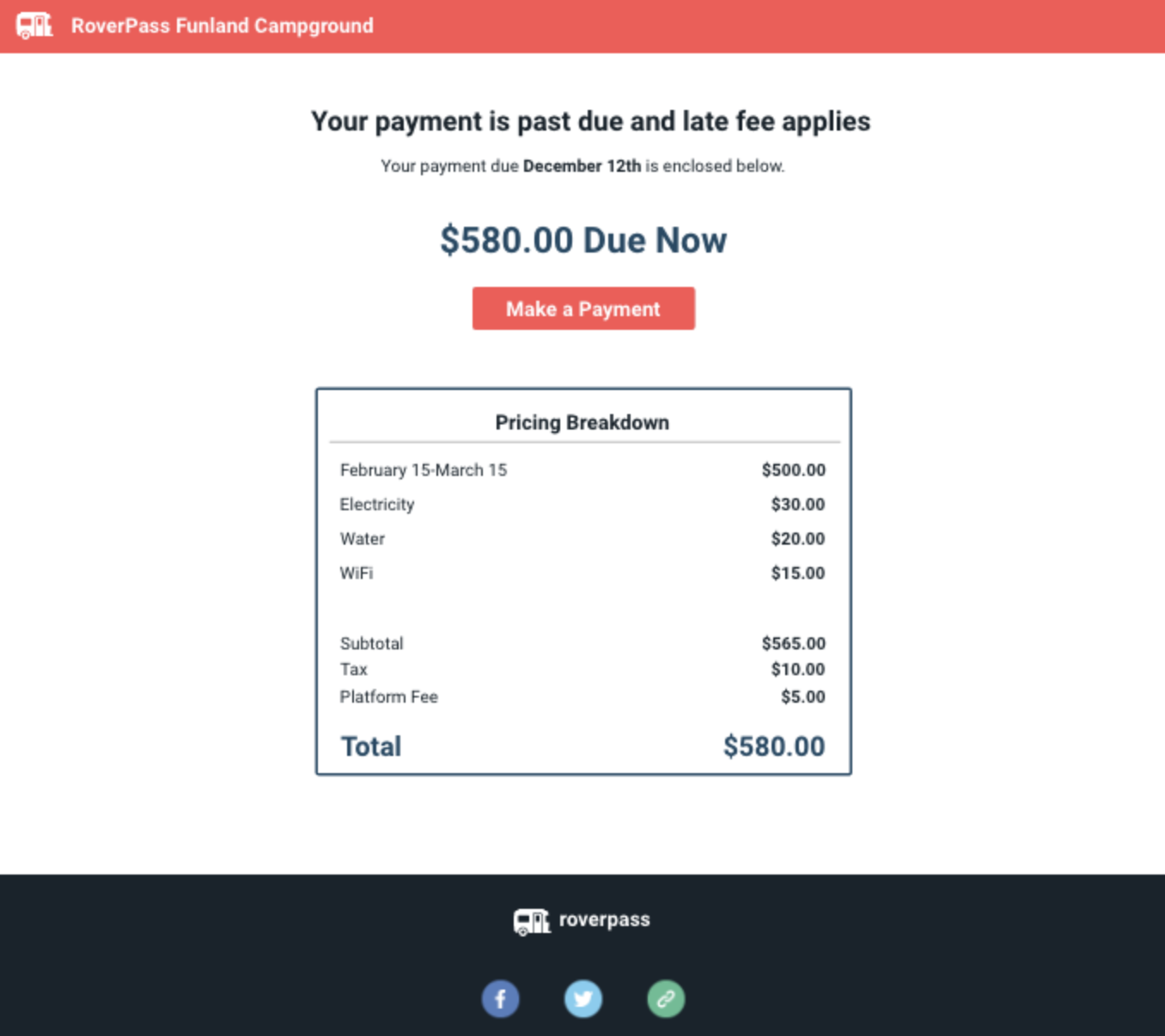
- Past Due with Late Fees Applied (Based on your Late Fee Configuration)
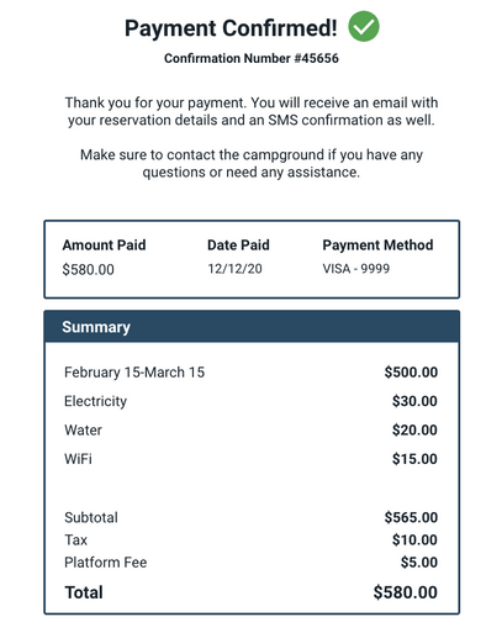
Payment Reminders will stop after payment has been completed and a Payment Confirmation email will be sent to the guest for their records.
Travelers Payment Options:
When the traveler receives their Payment Reminder email they will be provided with a link to a secured payment page where they can:
- Pay their invoice balance and any other associated fees
- Pay by credit or debit card
- Save their card on file for future use
- Agree to Cancellation Policy and ToS by selecting a checkbox
Payment Reminder Emails

Due Now
Past Due
Past Due with Late Fee Warning
Past Due with Late Fees Applied
Payment Confirmation Page